

Associate Suppliers to Offices
Below is the procedure to correctly associate a supplier to an office.
-
Open the office where the supplier is involved.
-
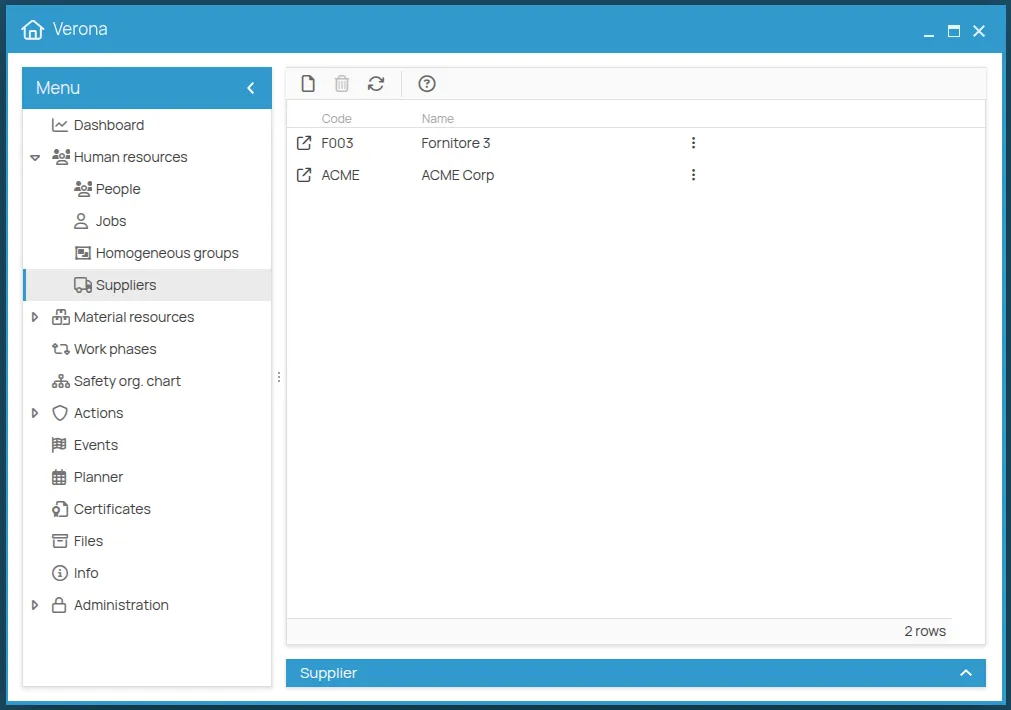
From the office menu, select Human Resources and then Suppliers in the submenu.
-
Click on the new icon
and select the desired supplier.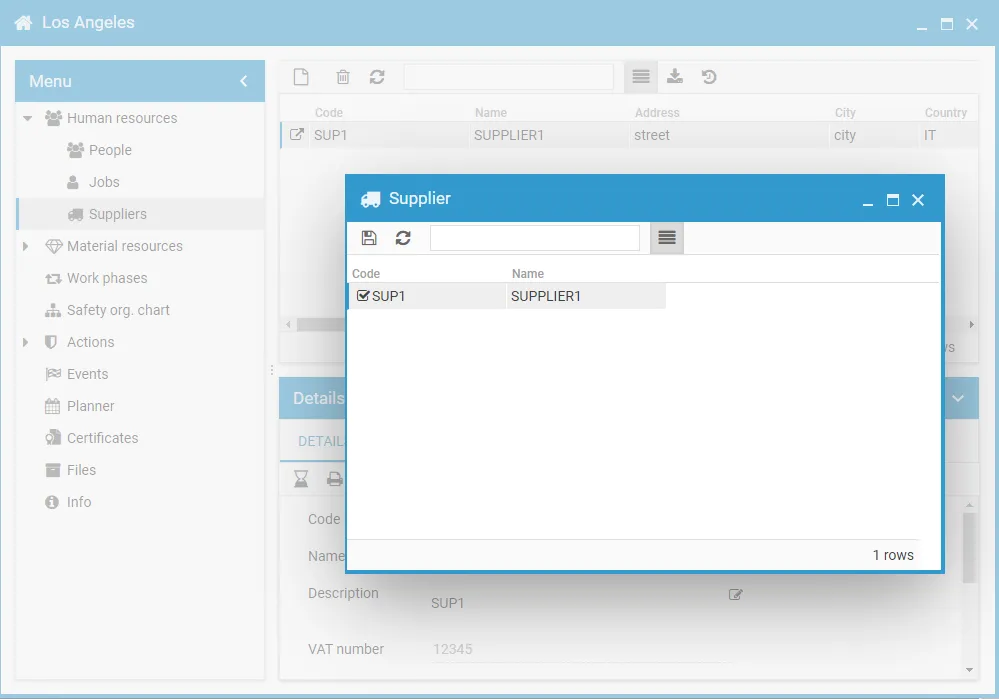
-
Click on save
Note: before associating a work phase to a supplier, you need to create their profile first. For more information on how to create a new supplier profile, see Supplier Management
Association Permissions
Section titled “Association Permissions”Once the office-supplier association is created, office users will have the following permissions on the supplier:
- Office Manager -> Supplier Admin
- Office Guest -> Supplier User
The supplier users in turn acquire the following permissions on the office:
- Supplier User -> Office Guest
- Supplier User -> Office Procedures User