

Printing and Exporting
The print function for a document is available next to each item where the
- HTML5
- Microsoft Word
Template selection
Section titled “Template selection”When opening the print menu, the system displays a dropdown with the recently used templates (up to 5). If this is the first time printing for that context, the field will be empty.
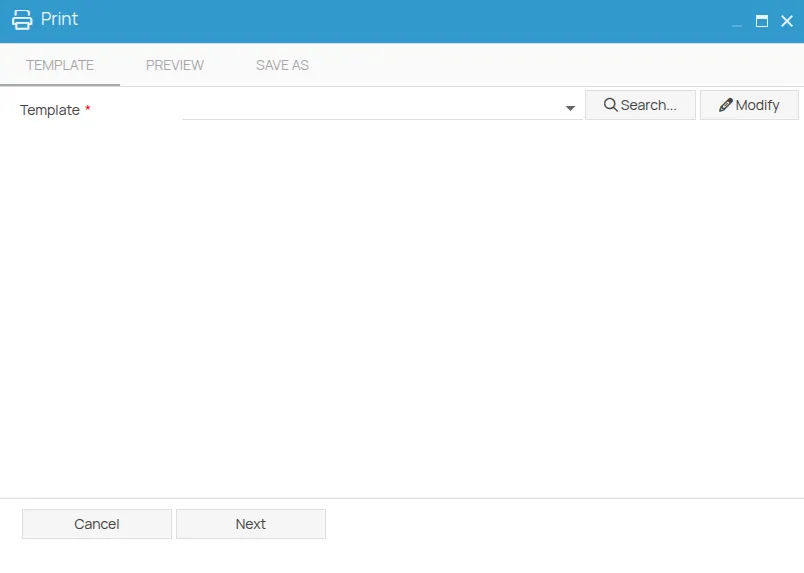
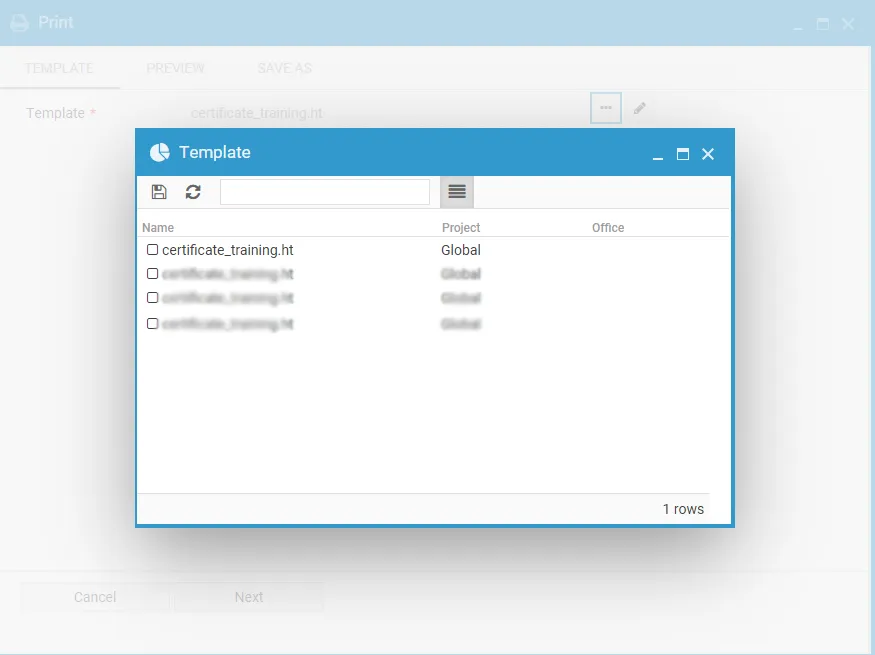
To search for a different template, click the Search button. An advanced selection window will open with three selectable filters via the toolbar buttons:
- Current project (active by default) — shows templates associated with the current project.
- Partner — shows templates provided by the partner, with the option to filter by country.
- 4HSE — shows templates provided by 4HSE, with the option to filter by country.
When selecting the Partner or 4HSE source, a country filter becomes available on the toolbar to narrow down the results. A text search field is also available to quickly find the desired template.
Once a template is selected from the window, it will be automatically added to the recent templates list for quicker access in future sessions.
Template editing
Section titled “Template editing”You can edit the selected template, including its HTML code, by clicking the Edit button
Once you’ve made your changes, you can save your custom version using the
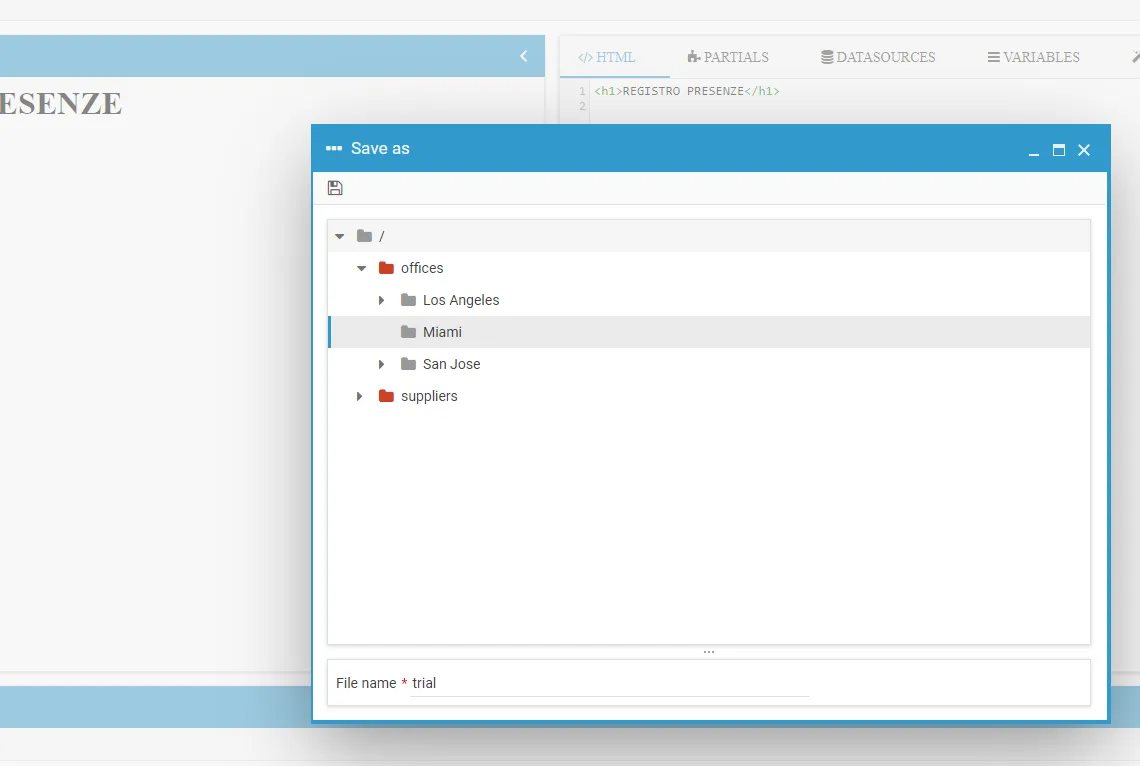
The modified file will be automatically used for the first export of the document and will then remain available in the recent templates list.
After selecting a template, click Next to preview it.
By clicking the print icon
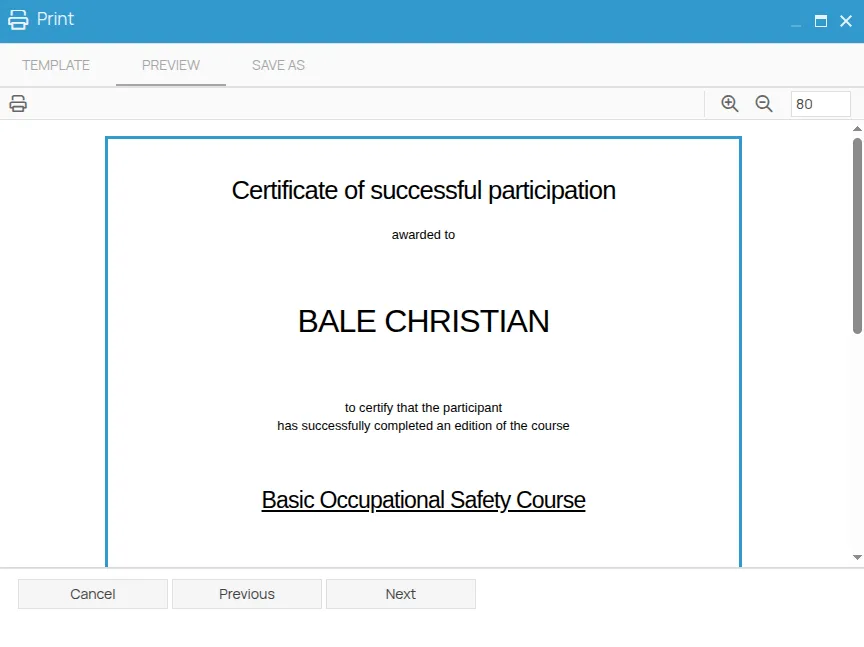
Alternatively, by clicking the Next button, you’ll proceed to the Export section, where you can choose the file format and destination.
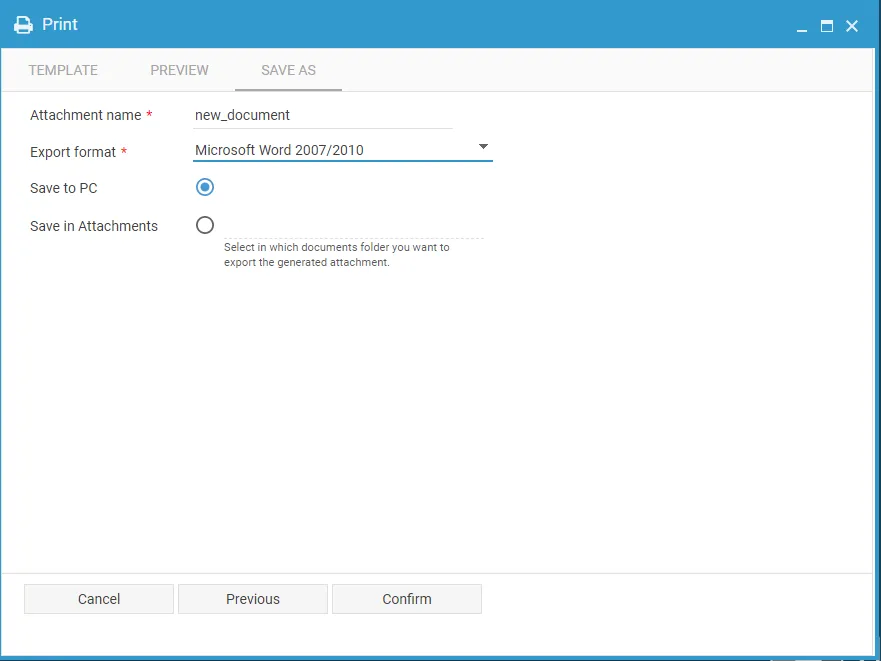
When selecting the Save in documents option, you’ll be prompted to choose the destination path for the file within the relevant Archive section of the software. If the destination folder does not exist yet, you can create a new one directly from the toolbar by clicking the New Folder button. In the following step, you’ll be able to define the document name, add a description, and select the people (or organizational roles) to whom you wish to send a notification about the document’s creation.
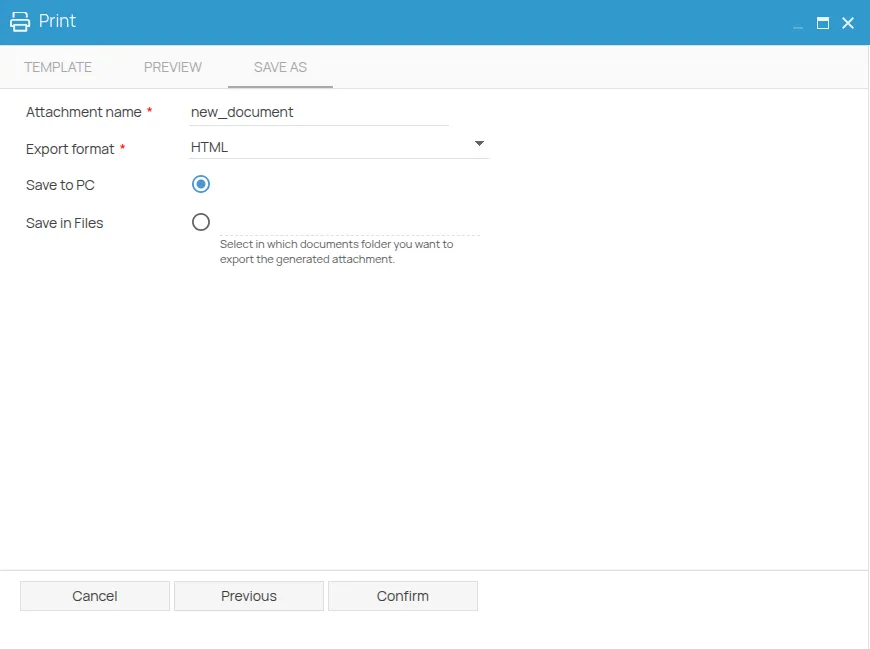
Clicking Confirm will start the export process. You can track its progress in the completion screen that follows.