
Supplier Records Management
Within the work project, it is possible to register suppliers, associating them with a specific site and specifying which work phases they are involved in.
In this section, you can also search for the desired supplier within the list, view the history, and export the list in csv format.
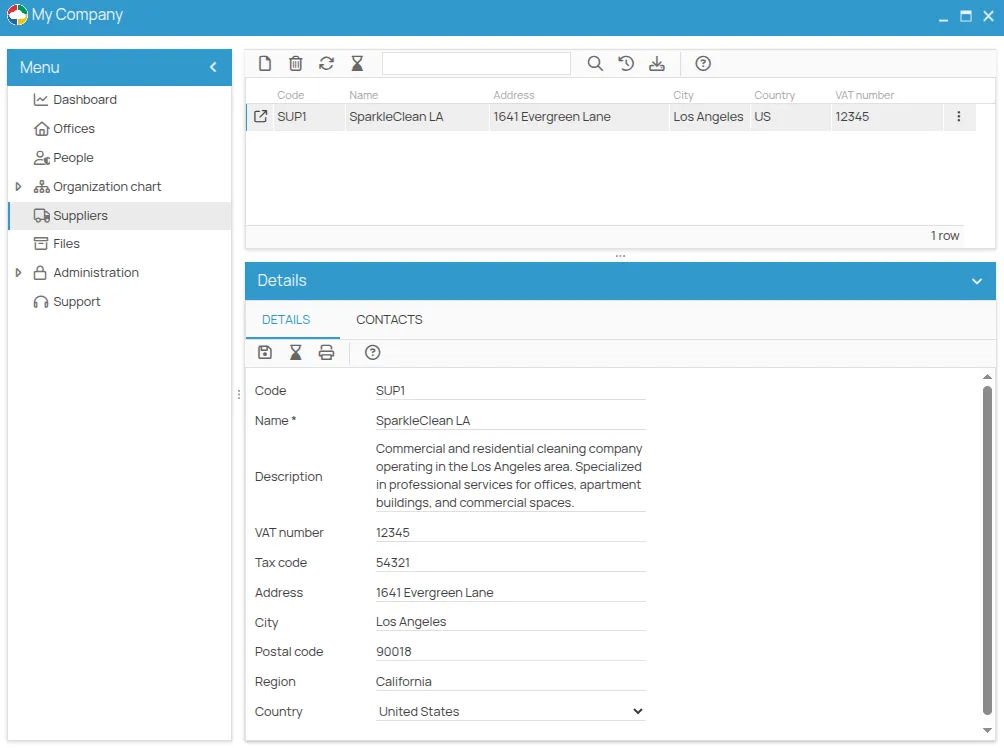
The details for each supplier can be entered through a dedicated window where the following are collected:
-
registry details and contact information
-
documents
-
associated work phases
Furthermore, with a view toward full collaboration, one or more user accounts can be created for each supplier, with specific access levels to the platform.
Based on all the data related to the supplier, it is possible to produce, print, or export the DUVRI (for more information, please refer to DUVRI Drafting, Printing, and Exporting). Additionally, we remind you that to generate the DUVRI, the supplier must be associated with the Work Phase(s) (refer to Associate a work phase to a supplier).
Let’s see how to:
-
Add a supplier
-
Delete a supplier
-
View the record details
Insert a supplier
Section titled “Insert a supplier”Below is the procedure for inserting a new supplier.
-
Open the safety project menu and select the Suppliers tab.
-
Click on new
and enter the supplier details. -
Click on save
.
Delete a supplier
Section titled “Delete a supplier”To delete a supplier, simply:
-
Select the row corresponding to the supplier you want to delete.
-
Click on the delete icon
.
View the record details
Section titled “View the record details”Once the supplier is selected, click on the expand button
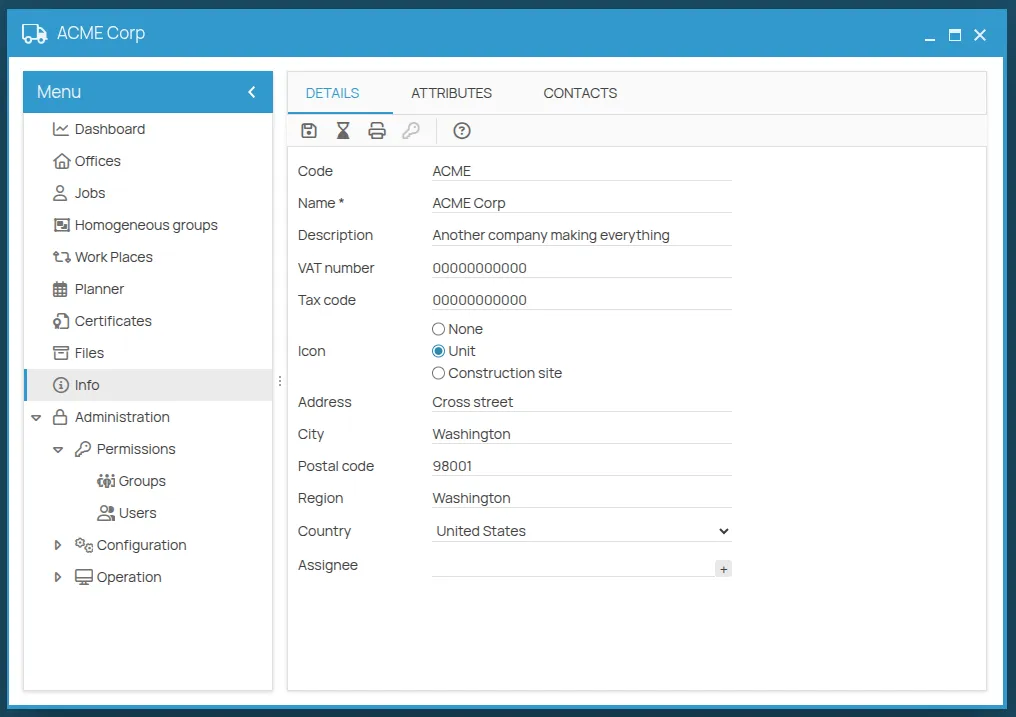
Within the supplier window, it is possible to:
-
view details and contact info
-
view the associated work phases
-
add or remove users linked to the supplier
-
create folders and attach documents
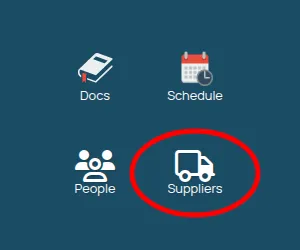
Access from the Desktop icon
Section titled “Access from the Desktop icon”By double-clicking on the Suppliers icon on the desktop, the list of suppliers accessible to the user is displayed, based on the projects they are associated with. From this list as well, for each supplier, it is possible to view details and define associations with sites, work phases, and other entities.