

Login and Password Reset
Managing access credentials is a key element for ensuring data security in 4HSE. This guide describes the authentication process, how to update a password, and solutions for the most common access issues.
1. Login Page and Access
Section titled “1. Login Page and Access”Access to 4HSE is provided through a dedicated authentication page.
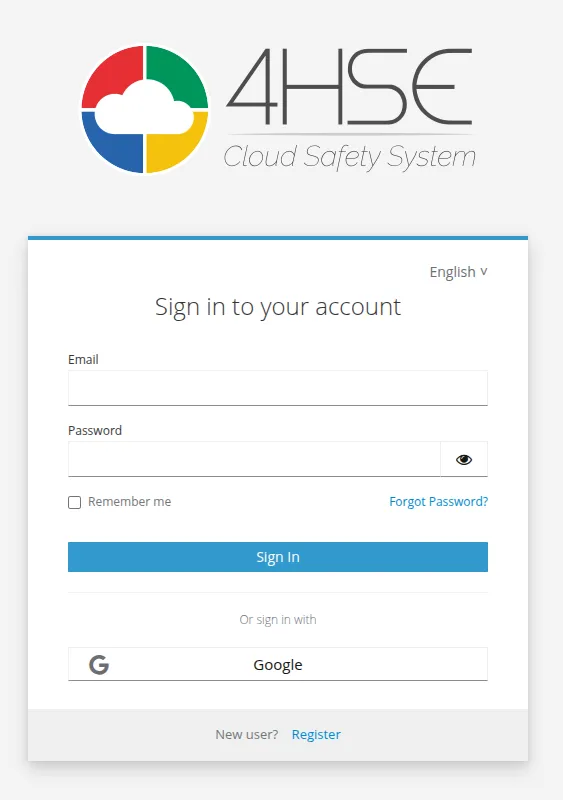
1.1 Login Page Elements
Section titled “1.1 Login Page Elements”The login screen includes the following fields and options:
- Email: Field for the email address registered on the platform.
- Password: Field for entering the account password.
- Remember me: Option to keep the session active on the current device.
- Login: Button to start the authentication process.
- Or login with… Google: Option to sign in using a Google account.
- Forgot password?: Link to initiate the password recovery process.
- New user? Register: Link to create a new account.
- Language selector: Tool to choose the interface language.
1.2 Password Reset
Section titled “1.2 Password Reset”If the password is forgotten, the reset can be initiated:
- On the login screen, select the Forgot password? link.
- A form appears where the associated Email must be entered.
- Select Send.
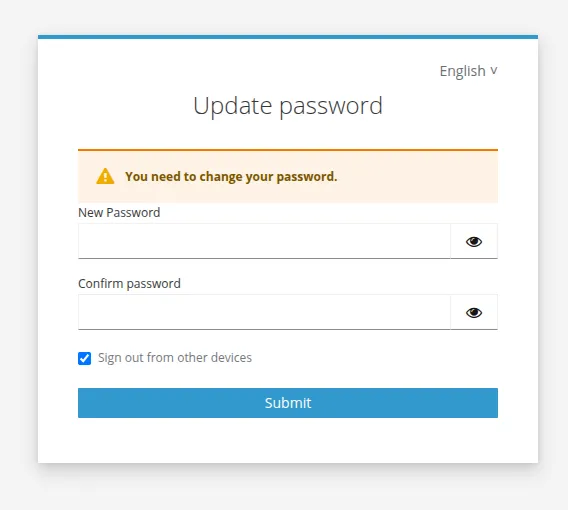
- The system sends an email containing the password reset link. The link is valid for 30 minutes. Once opened, a guided procedure allows setting a new password using two fields (new password and confirmation). At the end, select Submit to complete the operation.
2. Password Management
Section titled “2. Password Management”The password can be changed at any time through the account management panel. The Account Management guide provides instructions for:
- accessing the account management panel,
- configuring access settings,
- changing the password,
- enabling multi-factor authentication (MFA).
3. Common Access Issues
Section titled “3. Common Access Issues”This section describes the main types of errors related to login and password management, along with recommended solutions.
3.1 Password or Incorrect Email Issues
Section titled “3.1 Password or Incorrect Email Issues”| Issue | Common Cause | Recommended Solution |
|---|---|---|
| Login failed | Entering an email different from the registered one or a typing error. | Verify the accuracy of the email address. The email is the exact identifier used to register the user in 4HSE. |
| Password reset not received – wrong email | Entering an email different from the registered one or a typing error. | Verify the accuracy of the email address. The email is the exact identifier used to register the user in 4HSE. |
| Password reset not received – email in spam | The email ended up in the spam/junk folder. | Check the spam or junk folder. If the problem persists, contact the administrator. |
| Password reset link not working | The password reset link is valid for a limited period of 30 minutes. | Restart the “Forgot password” procedure and use the new link. |
3.2 Registration and Whitelabel Issues
Section titled “3.2 Registration and Whitelabel Issues”| Issue | Common Cause | Recommended Solution |
|---|---|---|
| Newly created user | The user has not completed the first login. | Check the invitation email and click the link to set the final password. Until then, the user is not registered on the platform. |
| Login failed – wrong domain | The user is trying to log in from a domain different from the one used for registration. (Occurs only in projects with a custom domain / whitelabel). | Log in from the correct domain. If the registration occurred on the wrong domain, the user must be recreated. |