

Fill in a form
A form is filled in starting from the item it refers to: an office, a piece of equipment, an event, a session, a certificate. The list offers the forms that have that item among their launch points.
Fill in a form from an item
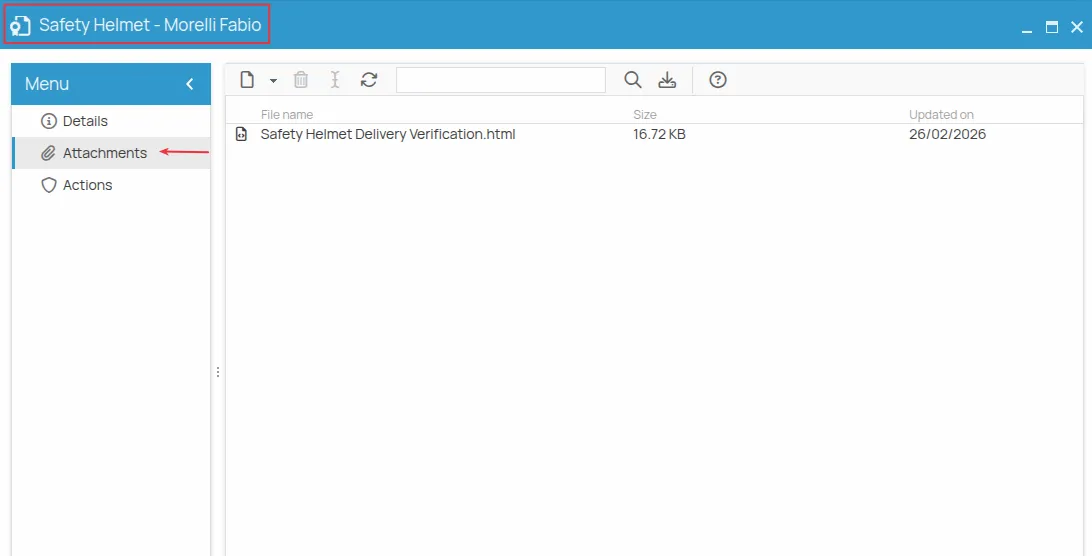
Section titled “Fill in a form from an item”- Open the item and choose Attachments.
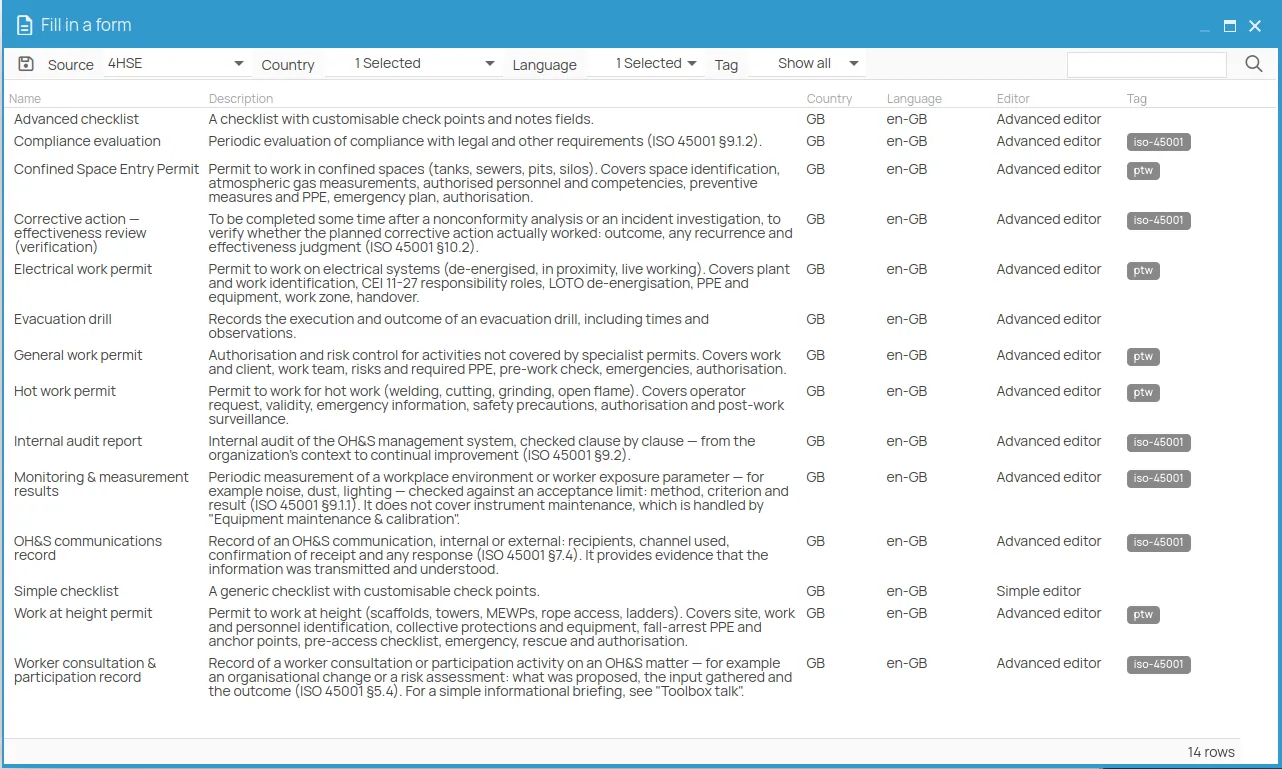
- Click the Fill in a form icon in the toolbar. The list of forms available for that item opens.
- Find the form in the list:
- the Source menu sets where the forms shown come from, one at a time: This project (the forms created in the project), Partner (the forms the partner makes available to the projects in its multi-company panel) and 4HSE (the predefined forms);
- the Country and Language filters start from the country of the office or project and the interface language, and can be changed or cleared;
- the Tag filter shows only the forms with the chosen tag;
- recently chosen forms appear at the top.
- Double-click the form: it opens ready to be filled in.
- Fill in the fields, then save the form in one of the ways described below.
A form can be saved in two ways
Section titled “A form can be saved in two ways”| Action | What it produces | Can it be changed later? | Attached to the item? |
|---|---|---|---|
| Save icon (a floppy disk) → Save as | an .hc copy | yes: reopening it continues the completion | yes |
| Finalize icon → Save in Files | an .html document | no | yes |
| Finalize icon → Save to PC | an .html document, downloaded | no | no |
The .hc copy is for forms that are not completed in one go, for example a register with the
time of entry and the time of exit. After the first save, Save overwrites the same copy.
Finalize asks for the Attachment name, suggested with the date and time, and with Save in Files the Path of the folder. The form stays open and editable, so it can be finalized again. The Print icon (a printer) prints the form as it is at that moment.
A certificate’s forms are filled in after it is issued
Section titled “A certificate’s forms are filled in after it is issued”Issuing a certificate does not require filling in a form. The forms that document the activity are filled in afterwards, from the certificate’s Attachments, as for any other item.
In the mobile app, Fill in a form appears after the certificate is saved, if there are forms for that type of certificate.
Fill in a form from the file system
Section titled “Fill in a form from the file system”A form can also be filled in without starting from an item: in the file system, double-clicking
the .hf file opens it ready to be filled in. In this case the filled-in form is not attached
to any item and stays in the folder where you save it.
Double-clicking an .hc copy reopens it so the completion can continue.
This site is protected by reCAPTCHA and the Google Privacy Policy and Terms of Service apply.