

Add, open and delete a supplier
Add a supplier
Section titled “Add a supplier”- Open the project menu and select the Suppliers section.
- Click new and enter the supplier’s details.
- Click save.
Open the record
Section titled “Open the record”Select the supplier and click the expand button.
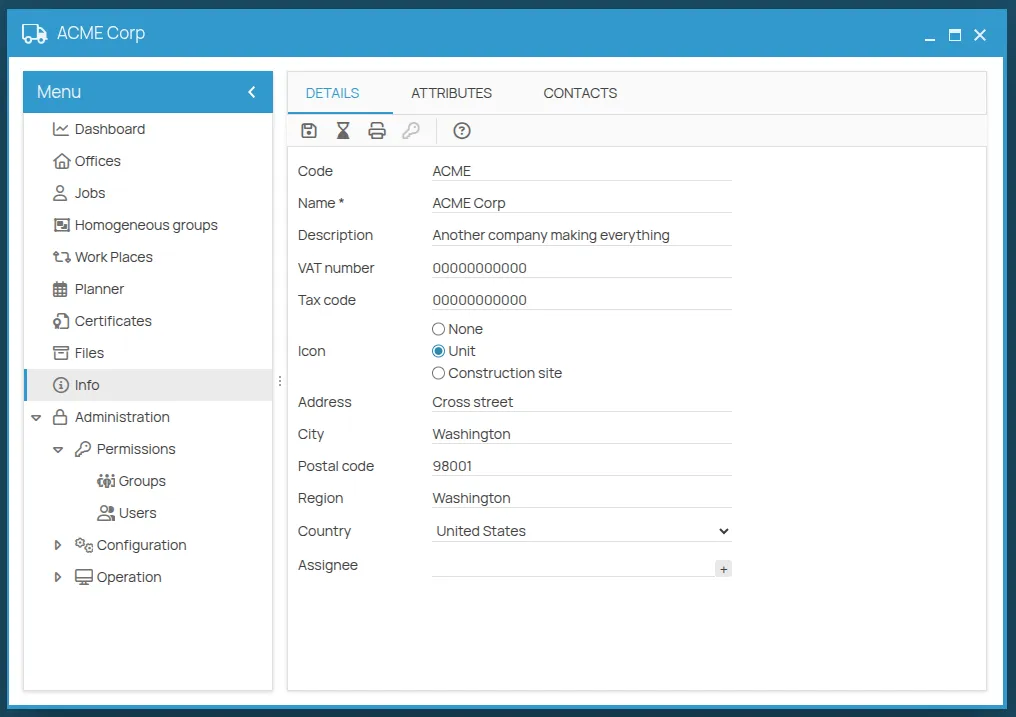
From the supplier window you can:
- see the details and the contacts;
- see the work phases it is linked to;
- add or remove the users linked to the supplier;
- create folders and attach documents.
In the list you can also search by name, view the history, and export the list in .csv
format.
Delete a supplier
Section titled “Delete a supplier”- Select the row of the supplier.
- Click the delete icon.
Next: link the supplier to the offices where it operates, Link a supplier to an office, and to the work phases it carries out, Link a work phase to a supplier.
This site is protected by reCAPTCHA and the Google Privacy Policy and Terms of Service apply.