

Windows, menus and lists
Navigation inside a 4HSE project is modelled on Windows: what you open is not a page that replaces the previous one, but a window that joins the others. You can keep as many open as you like and switch between them from the taskbar at the bottom of the screen, where every open window has its own entry.
Every window can be minimised, maximised to full screen, moved, closed and resized by hand, from the buttons at the top right. The controls are the same in every window, whatever it contains.
The menu is on the left, the content on the right
Section titled “The menu is on the left, the content on the right”The left side of a window lists the available functions; the right side shows what you chose. Opening a project, for example, gives you dashboard, offices, people, the organisation chart, suppliers, files, administration and technical support.
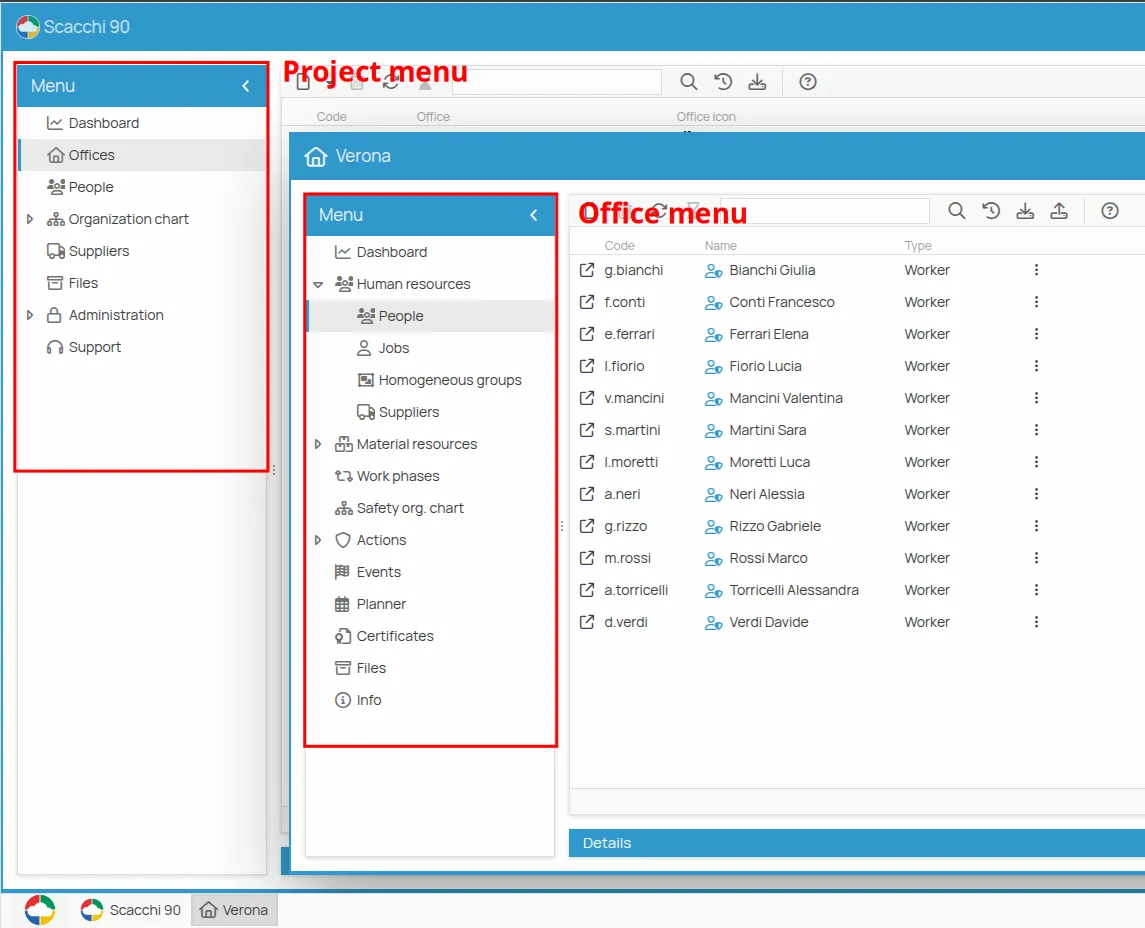
The right area is mostly lists of items. Selecting an item shows its details; where the open-in-window icon appears, the item can be opened in a window of its own, which is what makes working on two things at once possible.

Where the details appear
Section titled “Where the details appear”Selecting a row opens the details panel. Whether it appears at the bottom or on the right is a personal preference — see Choose where the details appear.
The two toolbars
Section titled “The two toolbars”Every window has a general toolbar at the top and a contextual one on the details. They act on different objects: the first on the list, the second on the selected item.
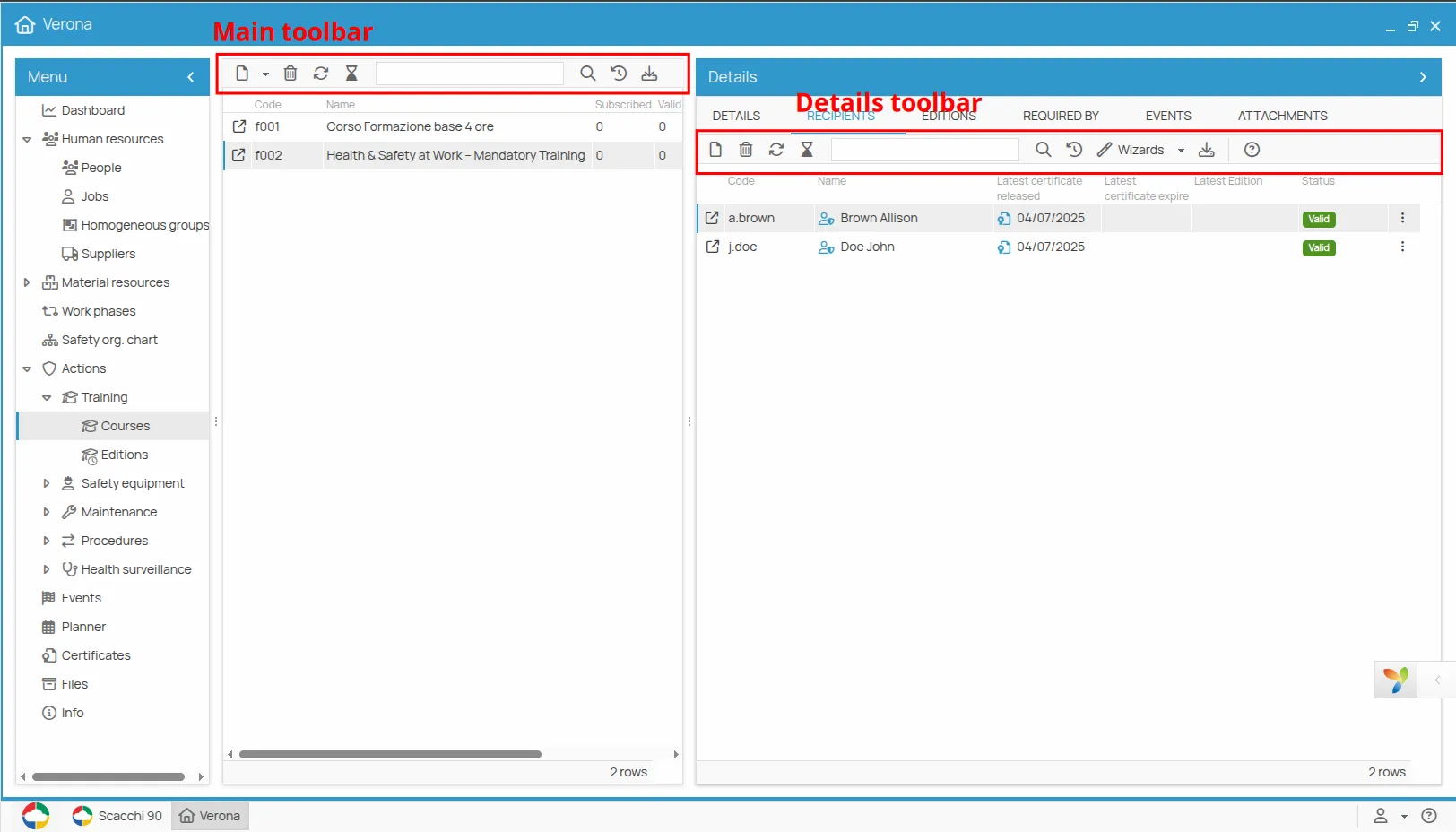
Main toolbar
Section titled “Main toolbar”At the top of the window, it acts on the list.
| Function | |
|---|---|
| Create · Add · Associate | a new item |
| Delete | the selected items |
| Reload | the list |
| Search | within the list |
| Show/hide history | of the changes |
| Export · Import | data in CSV — see Export a list to CSV and Import a list from CSV |
Detail toolbar
Section titled “Detail toolbar”Below, on the details of the selected item, it acts on that item, and its contents change with the context.
| Function | |
|---|---|
| documents and certificates — see Print or export a document | |
| Wizards | the guided procedures, such as recording outcomes in bulk or transferring a worker |
| Certificate generation | see Issue a certificate |
| Existence periods | see Existence periods |
| Attachments | see Where attachments live |
The rule of thumb: if what you want concerns the list, it is at the top; if it concerns the thing you selected, it is below.
This site is protected by reCAPTCHA and the Google Privacy Policy and Terms of Service apply.