

Inventory a PPE
An inventory entry records the pieces actually available of a PPE already in the registry: a batch with vendor, model, due date and quantity. See Material resources.
From the office inventory
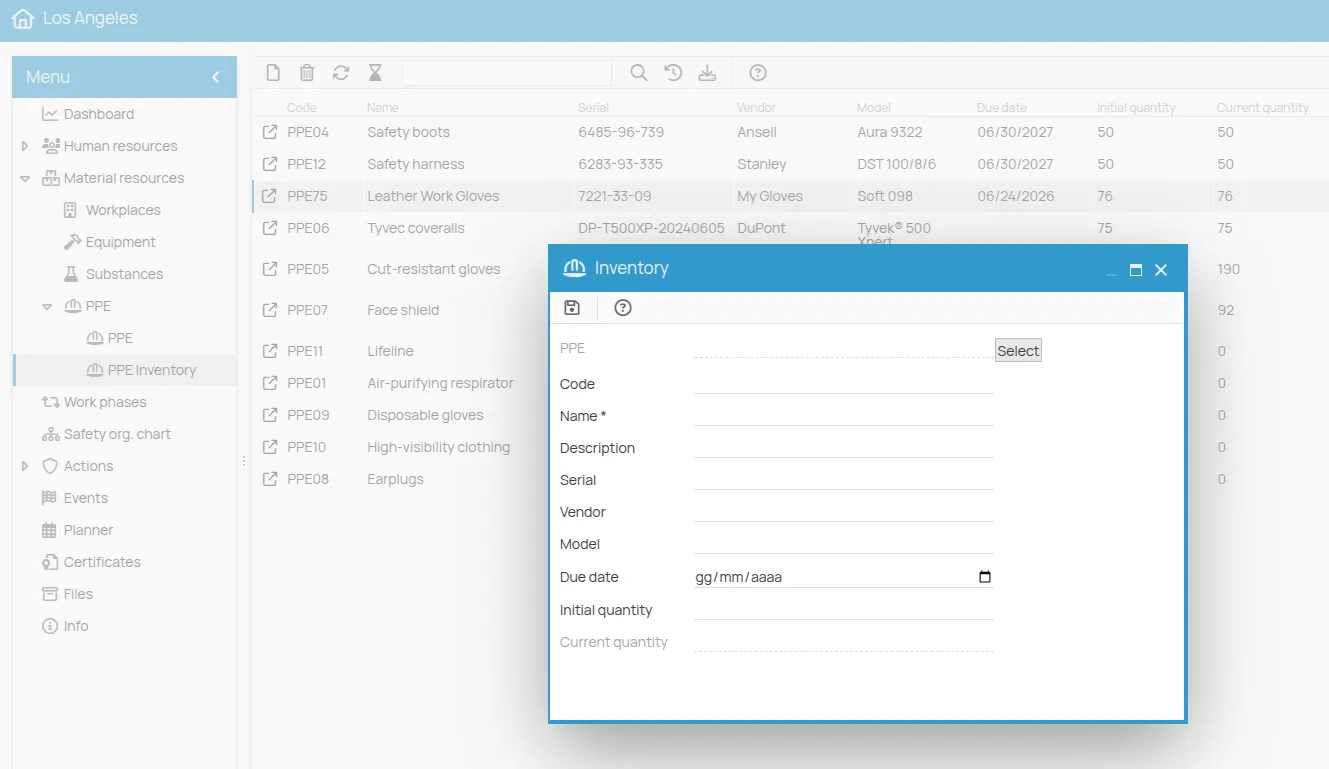
Section titled “From the office inventory”- Open the office and, in the Material resources → PPE menu, choose PPE Inventory.
- Click the New icon in the toolbar.
- Next to the PPE field, click Select and choose the device from the registry.
- Enter the Name, which is required, and Code, Description, Serial, Vendor and Model if needed.
- Set the Due date and the Initial quantity.
- Click the Save icon (a floppy disk).
From the PPE record
Section titled “From the PPE record”- Open the PPE from the registry and choose the Inventory tab.
- Click the New icon. The PPE field is already filled in with the device.
- Fill in the other fields as above and save.
The current quantity is calculated
Section titled “The current quantity is calculated”The Current quantity cannot be changed by hand. 4HSE calculates it by subtracting the pieces recorded on the delivery certificates issued for that inventory entry from the Initial quantity. The current quantity of the PPE in the registry is the sum of those of its entries.
To record a delivery, see PPE delivery.
This site is protected by reCAPTCHA and the Google Privacy Policy and Terms of Service apply.