

Import a list from CSV
Importing loads data into a grid from a .csv file: people, offices, equipment, PPE. To go
the other way, see Export a list to CSV.
-
Click the import icon in the grid toolbar.
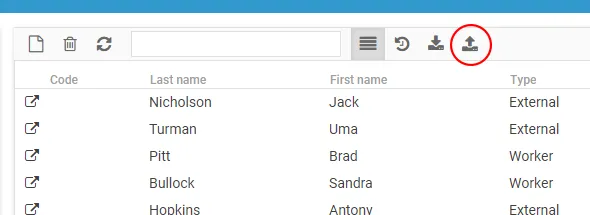
The guided wizard opens.
Step 1 — Select the file
Section titled “Step 1 — Select the file”Under the Select file tab, click Import and drag or upload the .csv file.
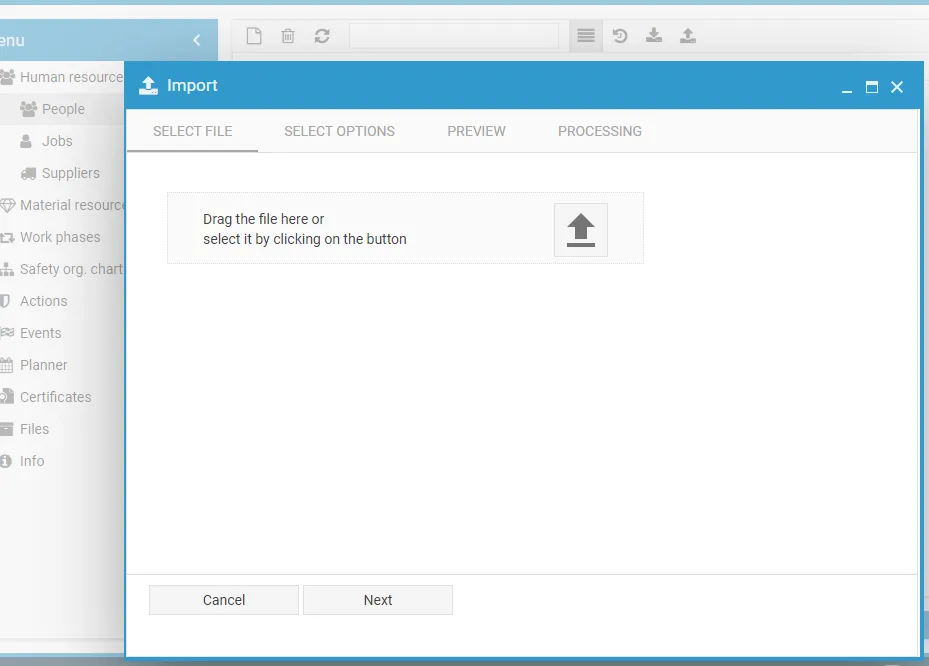
Once uploaded, you move on to the next step.
Step 2 — Delimiters and format
Section titled “Step 2 — Delimiters and format”Set how the file has to be read:
- Delimiter — the character that separates the columns;
- Skip first row — tick it if the first row contains the column headers.
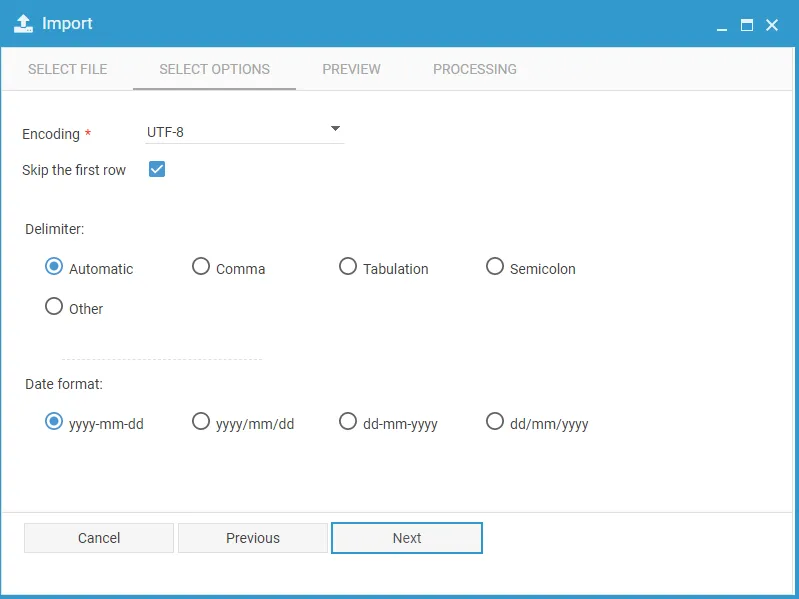
Click Next.
Step 3 — Preview
Section titled “Step 3 — Preview”In the Preview tab, choose which columns to import and assign the corresponding values.
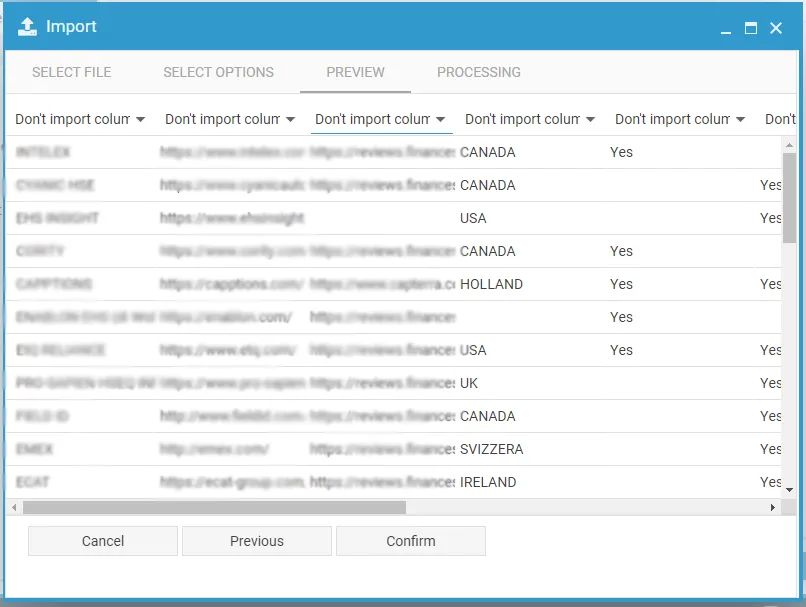
Check the data, then click Confirm to complete the import.
This site is protected by reCAPTCHA and the Google Privacy Policy and Terms of Service apply.