

Customise a report
With the Report editor you can change a report or create a new one. A report is written in HTML with Handlebars placeholders, and with a JavaScript script that fetches the data: changing it requires technical knowledge of these languages.
Modify a report while printing
Section titled “Modify a report while printing”- Click the Print icon on the item to print. Printing goes through three steps (Report, Preview, Save as) and opens on the first one, Report, where the report is chosen: see Choose a report.
- With the report selected, click Modify. The Report editor opens.
- Make your changes: see The report editor.
- Click the Save icon (a floppy disk), choose Save as, then a folder of the project. The original report stays as it was.
- To print with your version, choose it with Search… and the This project button: see Choose a report.
If the report already belongs to the project, Save overwrites the file and printing uses the changed version straight away.
Modify a report from the file system
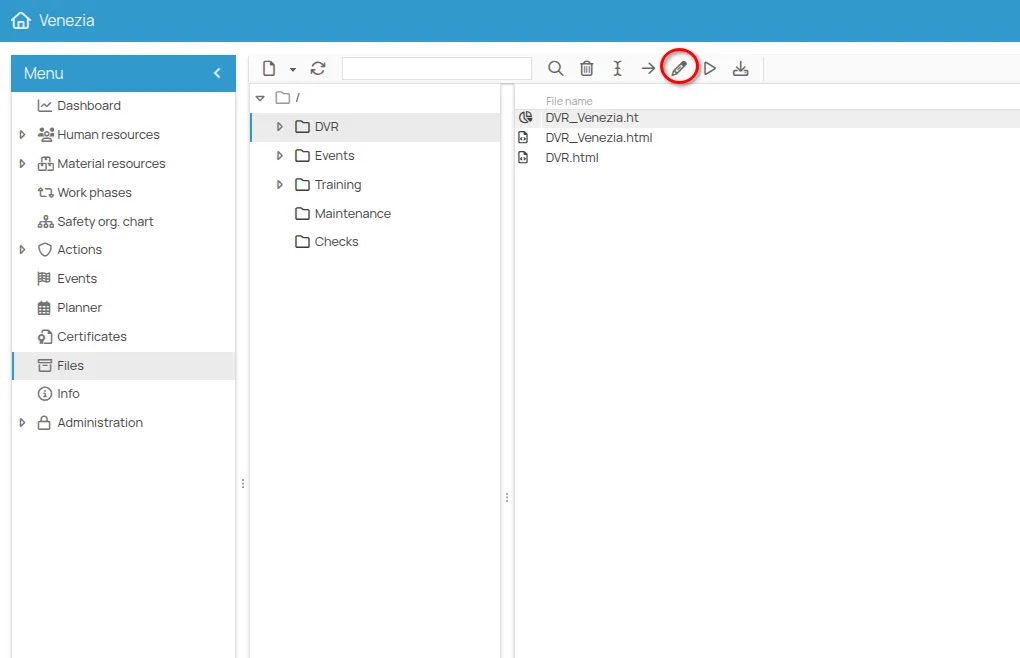
Section titled “Modify a report from the file system”The file system holds the reports saved with Save as while printing and those created with New report (see Create a report).
In the file system, select the report’s .ht file and click the Modify icon (a
pencil), or right-click the file and choose Modify. The report opens in the editor and is
saved as above.
Create a report
Section titled “Create a report”- In the file system of the office or project, click the New icon (a blank sheet) and choose New report. The Report editor opens.
- Click the Configuration icon (a gear) and enter the report’s information:
- Name, required: the name the report is listed under when printing;
- Description, optional;
- Launch points: the items the report can be printed from;
- Country and Language: used by the filters of the report search. If they are left on All countries and All languages, the report appears whatever the filter;
- Tag, optional: used to filter the list of reports;
- Output type: HTML, CSV or Plain text, the format of the exported document.
- Write the report in the editor’s tabs: see The report editor.
- Save with the Save icon (a floppy disk) and Save as.
The report editor
Section titled “The report editor”| Tab | What it contains |
|---|---|
| Template | the document, in HTML (or in the format chosen in Output type), with Handlebars placeholders for the data |
| Script | the JavaScript code that fetches and prepares the data for the template |
| Helpers | the support functions used by the template |
| Partials | pieces of other files reused in the template, each with its own Alias |
To test the report without leaving the editor:
- the Select debug entity icon chooses the item to test it with, for example an office;
- the Run icon generates the document with that item’s data and shows it in the editor; if the script, the helpers or the template contain an error, the Debugger panel lists it with the time and the place where it occurred.
Reports built with the previous version of the editor still open in the old editor. The report language is described in detail in the developer documentation.
This site is protected by reCAPTCHA and the Google Privacy Policy and Terms of Service apply.