

Turn on two-factor authentication
Two-factor authentication (2FA) asks for a temporary code in addition to your password. You choose which method to use.
With email
Section titled “With email”A temporary code is sent to the address linked to your account at every login.
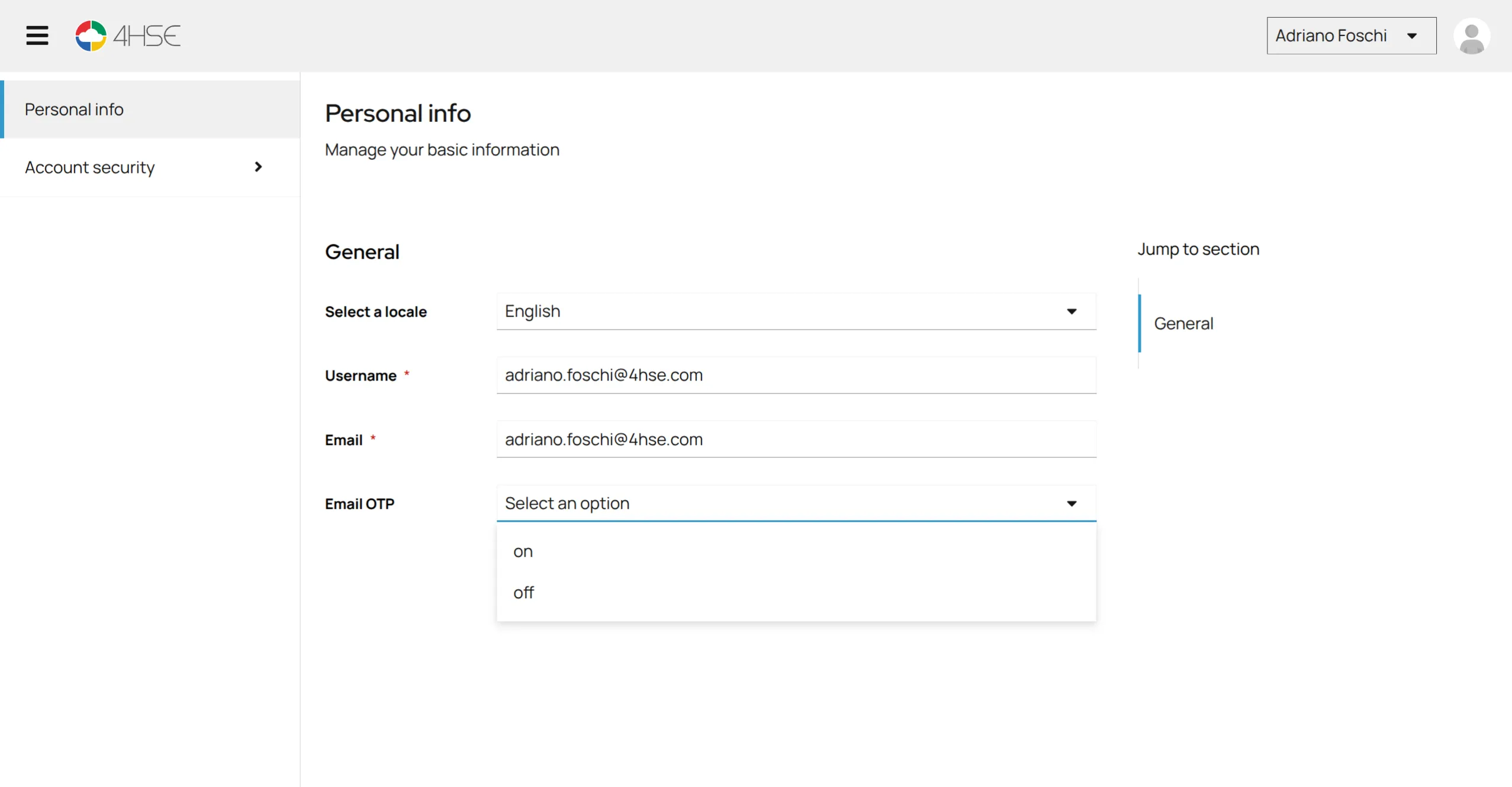
- Open the account panel and go to Personal information.
- Click Email OTP.
- Select “on” to enable code delivery by email.
- Click Save.
With an authenticator app
Section titled “With an authenticator app”A mobile app generates the codes — Google Authenticator, Microsoft Authenticator, FreeOTP or Bitwarden, for example.
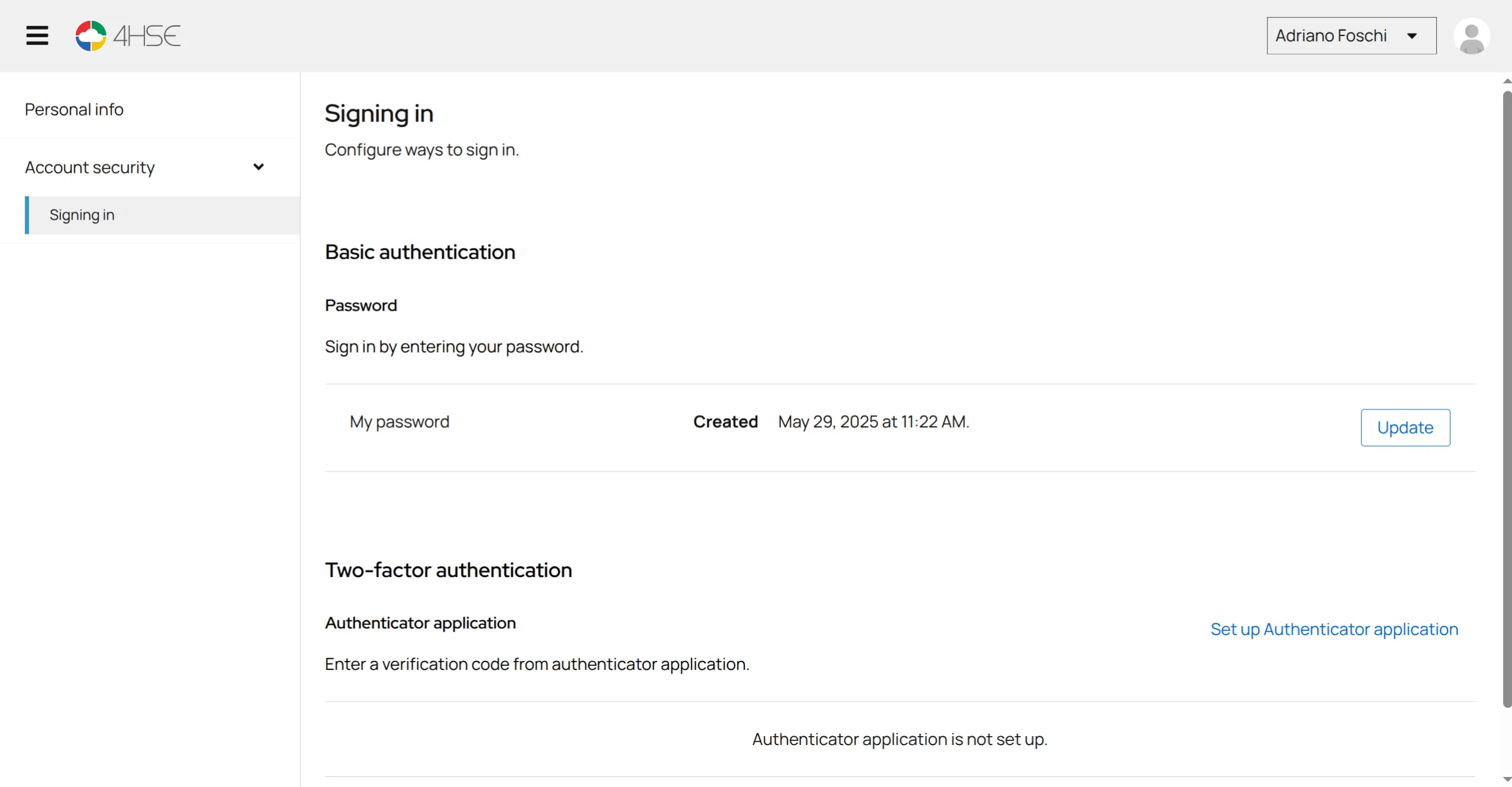
- Open the account panel and go to Account security > Access settings.
- Click Set up Authenticator app.
- Scan the QR code on screen with the app on your phone.
- Enter the temporary code the app generates, to complete the activation.
From now on, logging in requires the code generated by the app as well as your password.
This site is protected by reCAPTCHA and the Google Privacy Policy and Terms of Service apply.