

Print or export a document
This is the general procedure. It is the same for a certificate, a data sheet, a list, or any other printable item: start from the print icon next to the item.
- Click the print icon.
- Choose the template — see Choose a template.
- Click Next to open the preview.
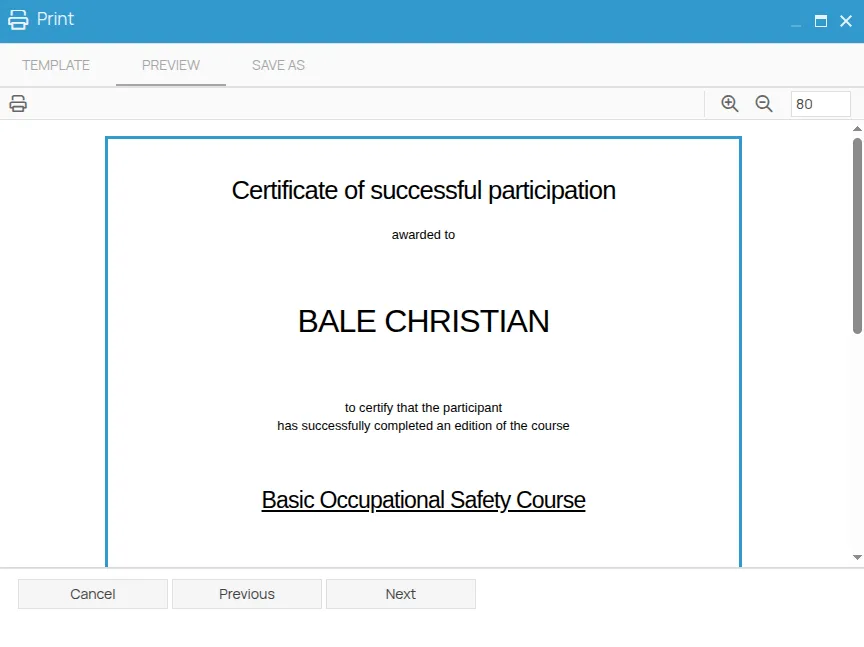
From the preview you can go two ways.
Printing
Section titled “Printing”Click the print icon at the top left to use the browser’s print function: from there you
can save a .pdf or send the document to a local printer.
Export
Section titled “Export”Click Next to reach the Save as tab.
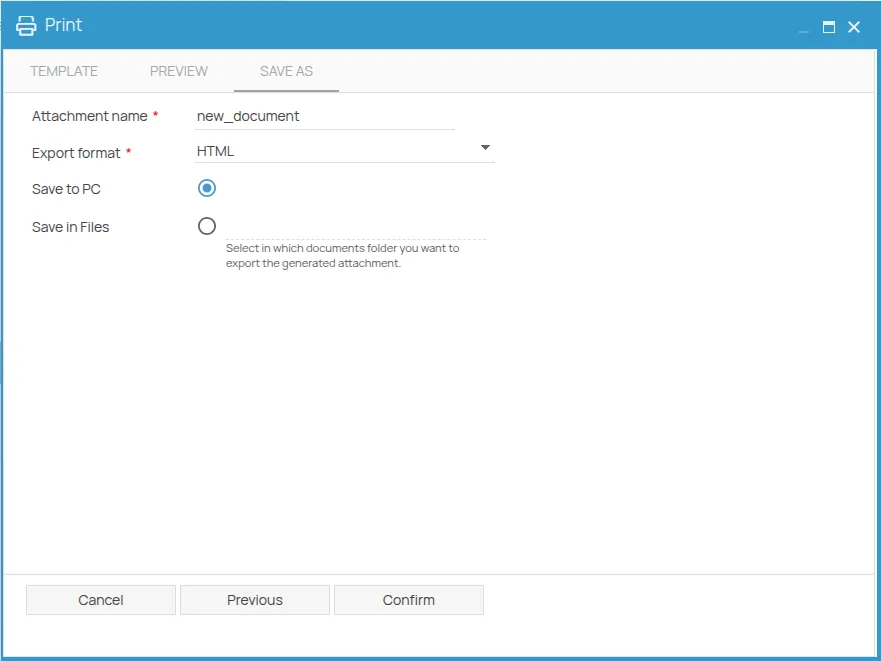
- Fill in the Attachment name, which is required.
- Choose the format under Export format, also required.
- Choose the destination:
- Save to PC — the file is downloaded to your computer.
- Save in Files — pick the folder of the 4HSE file system to export it to. If the folder does not exist yet, create it from the toolbar with New folder.
- Click Confirm to start the export. The screen that follows shows its progress.
This site is protected by reCAPTCHA and the Google Privacy Policy and Terms of Service apply.