

Copy a work phase between two offices
In this tutorial you copy two work phases from one office to another, and see what happens to everything attached to them. At the end you will have understood the decisive step: deciding what gets linked and what gets created.
What you need
Section titled “What you need”A project with two offices, and at least one work phase in the source office. The example uses a project called Acme Inc. with two offices, London and Manchester, and copies the phases Cleaning and School management and administration from Manchester to London.
Each of those phases has material resources, actions and hazards attached to it. That is the interesting part: the phases themselves are trivial to recreate, their relations are not.
1. Start from the destination
Section titled “1. Start from the destination”Open the London office — the destination — and go to its Work phases section. A copy always starts from the office that receives the elements.
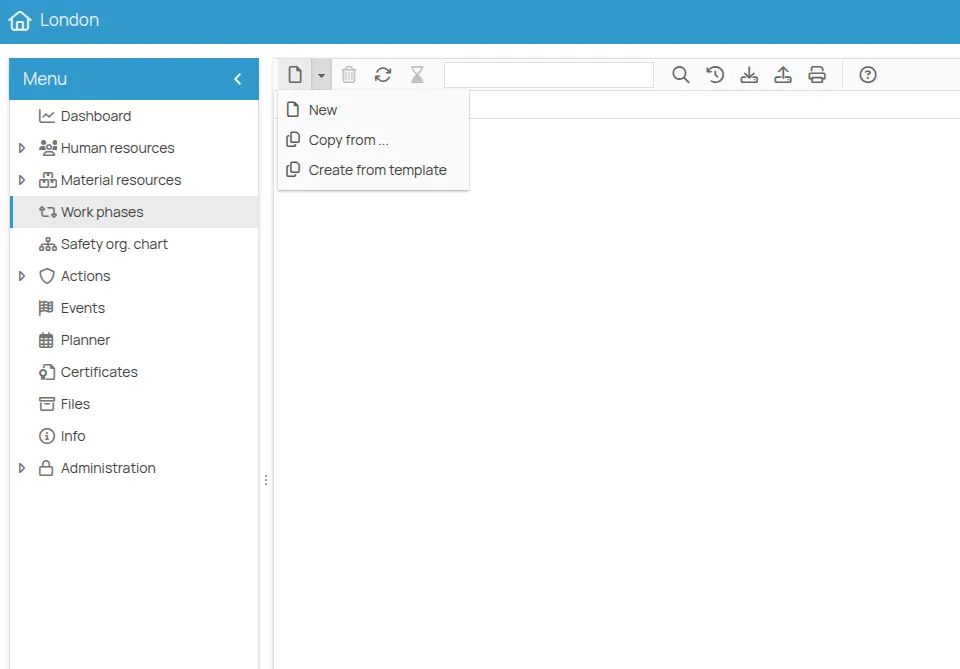
Expand the New button and select Copy from….
2. Select the phases
Section titled “2. Select the phases”The table shows the work phases of every project and office you have access to. Activate the This project filter to narrow it down to Acme Inc.
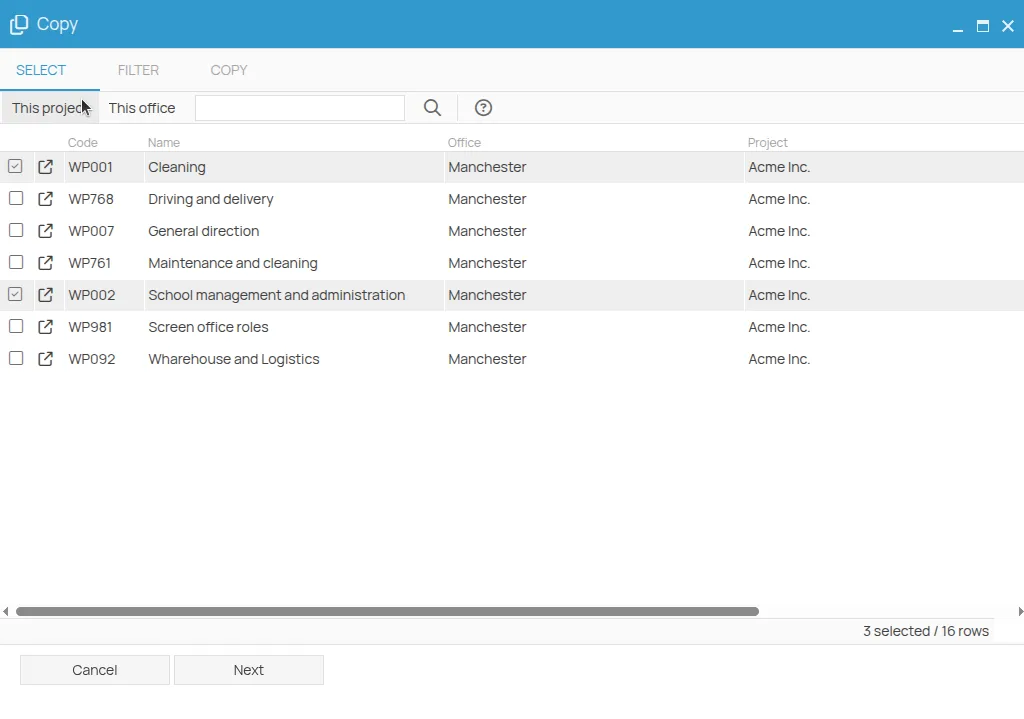
Select School management and administration and Cleaning, then click Next.
3. Decide what is linked and what is created
Section titled “3. Decide what is linked and what is created”This is the step that matters. On the left, the navigation tree shows the two phases with everything attached to them. Select and expand School management and administration.
The New form on the right, and the copy icon next to the phase name, tell you that this phase does not exist in London: it will be created.
Expand the Actions section below it:
- General training carries a link icon — the action already exists in London, so 4HSE proposes to link the phase to the existing one rather than making a second copy;
- the other actions carry a copy icon — they are missing in London, so they will be created and linked to the phase.
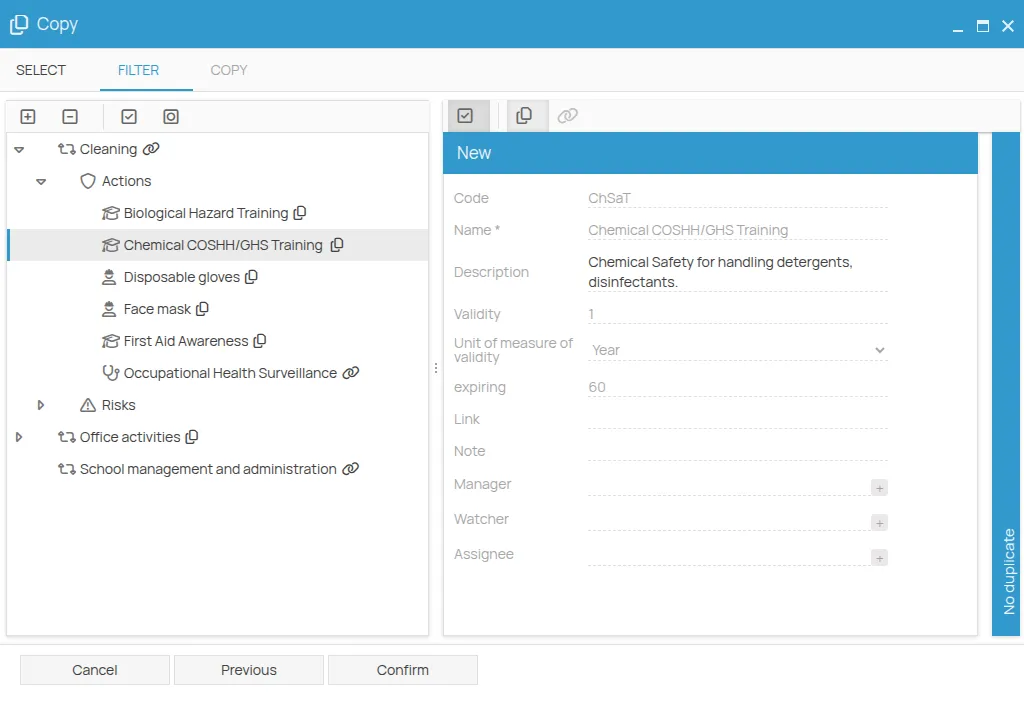
This is the whole point of the procedure: the destination office does not end up with two “General training” courses. Review the tree, then click Confirm.
4. Read the result
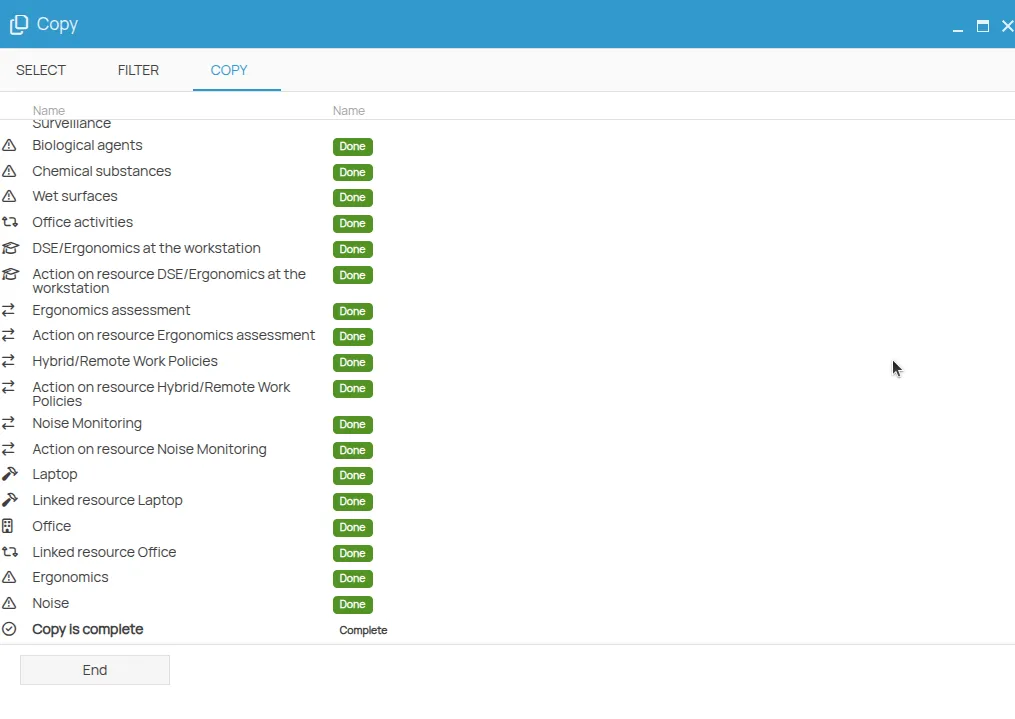
Section titled “4. Read the result”The last step runs the operation and reports what happened: elements created, elements linked, and any conflicts.
What you have learnt
Section titled “What you have learnt”The London office now has both work phases, with their hazards and resources, and its existing General training course is shared with the new phase instead of being duplicated.
The same three steps — select, filter, copy — work for every copyable element in 4HSE, and the middle step is always where you decide the balance between linking and creating. See Copy an element.
This site is protected by reCAPTCHA and the Google Privacy Policy and Terms of Service apply.