

Build a form with the simple editor
The simple editor builds a form as a list of fields, one below the other. See Forms for how it differs from the advanced editor, and Create a form to open the editor, set the launch points and save.
Build the fields
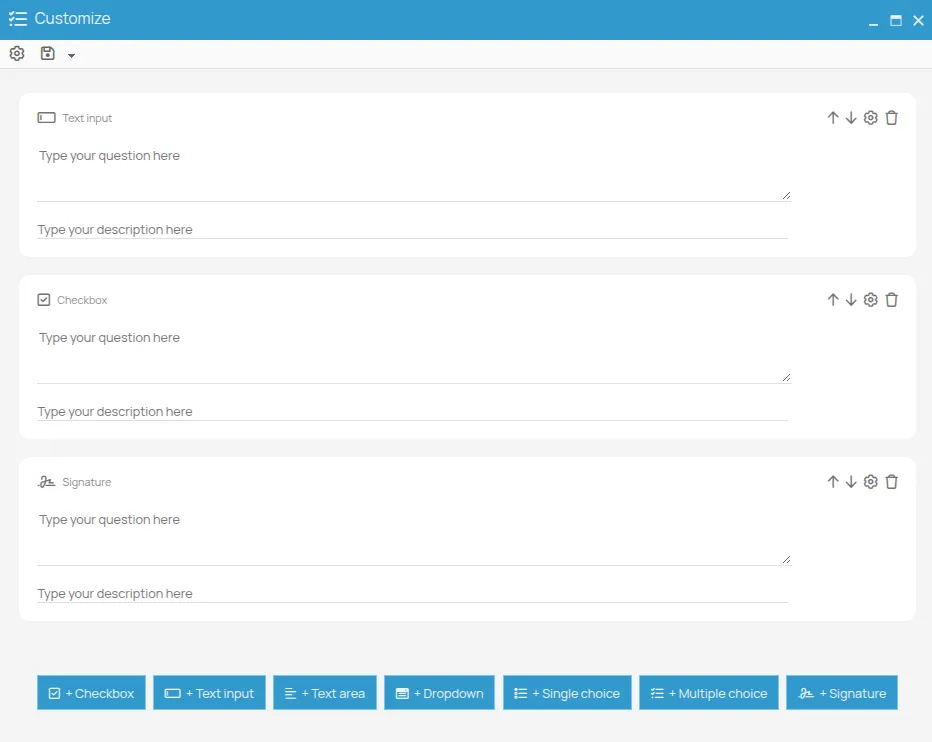
Section titled “Build the fields”- Add a field with the buttons below the list of fields: + Checkbox, + Text input, + Text area, + Dropdown, + Single choice, + Multiple choice, + Signature. The field is added at the end of the list. The types are described in Field types.
- In the field, type the question that the person filling in will read and, if needed, a description to guide them.
- In Dropdown, Single choice and Multiple choice fields, enter the answers the person filling in can choose from: in the Options section, click Add for each answer.
- Order the fields with the up and down arrows next to each one. The bin deletes the field.
- Save the form.
Set the form’s appearance
Section titled “Set the form’s appearance”Click the Configuration icon (a gear) and open the Appearance tab.
- Header sets what appears at the top of the filled-in form:
- Standard: the project’s logo and name, and the office details;
- Custom title: a Title and a Subtitle of your choice;
- None.
- Show entity descriptor adds a short description of the item the form is filled in from, for example the person or the session date.
- Completion date and time adds the date and time the form was filled in:
- Show date and Show time set which of the two fields appear;
- Prefill with current date/time fills them in when the form opens;
- Read-only stops the person filling in from changing them.

Add a script to a form
Section titled “Add a script to a form”Click the Configuration icon (a gear) and open the Script tab.
A script is JavaScript code that the form runs while it is being filled in. It can, for example, prefill a field with data from the item the form was opened from, as the attendance register does with the list of participants. How to write a script is explained in Add a script to a form.
This site is protected by reCAPTCHA and the Google Privacy Policy and Terms of Service apply.