

The widget editor
The editor is where a widget is composed, whether you are creating or editing one. It is the same editor the advanced checklist opens.
Components — left panel
Section titled “Components — left panel”The components that can be added to the widget:
| Component | Use |
|---|---|
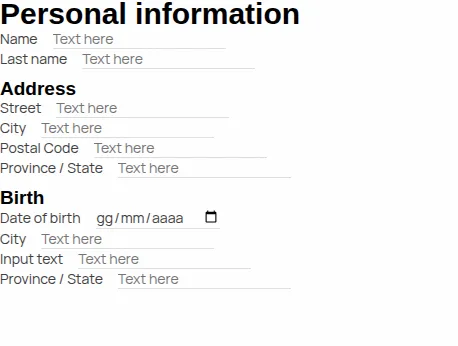
| Labeled input | a label plus an input field, ideal for vertical forms |
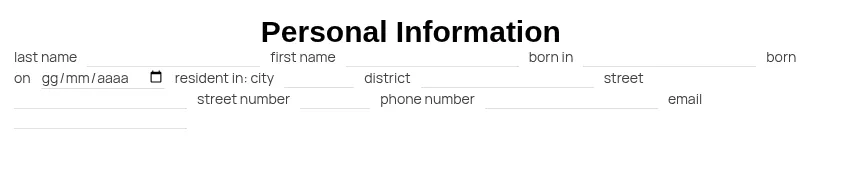
| Basic input | a plain input field, useful in inline forms |
| Static | non-interactive elements: labels, titles |
| Layout | organises the content visually — see the layouts |
| Snippets | reusable pieces of widget |
Tree — left panel, TREE tab
Section titled “Tree — left panel, TREE tab”Shows the structure of the widget. Selecting a node highlights it in the preview and in the properties panel. It is the reliable way to select an element when components are packed tightly together, and selecting is what lets you edit, delete or duplicate.
Preview — centre
Section titled “Preview — centre”A live preview of the widget. Hovering an element highlights it and shows its type; clicking it selects it and updates the tree and the properties. Two icons appear on the selected element, to duplicate it and to delete it.
Properties — right panel
Section titled “Properties — right panel”The properties of the selected element: text size, margins, default value and so on. They differ from component to component.
Each property has a checkbox: off, the component uses the default value; on, you set your own. Changes apply immediately in the preview — you may need to click elsewhere for them to take effect.
Drag and drop
Section titled “Drag and drop”- from the COMPONENTS panel to the preview, to add an element exactly where you want it;
- within the preview, to rearrange elements.
Holding CTRL while dragging turns the cursor into a plus: the element is duplicated instead of moved.
This site is protected by reCAPTCHA and the Google Privacy Policy and Terms of Service apply.