

Configure a form on an action
Forms are defined on the action, once: you decide the template that will be used every time that action is executed. See Forms for the difference between configuring and filling in.
The action is in the office menu, under Actions, in the submenu of its type.
- Open the action detail and go to the Linked forms tab. Here you see the forms already active, and you can add or remove them.
- Click New. A guided wizard opens.
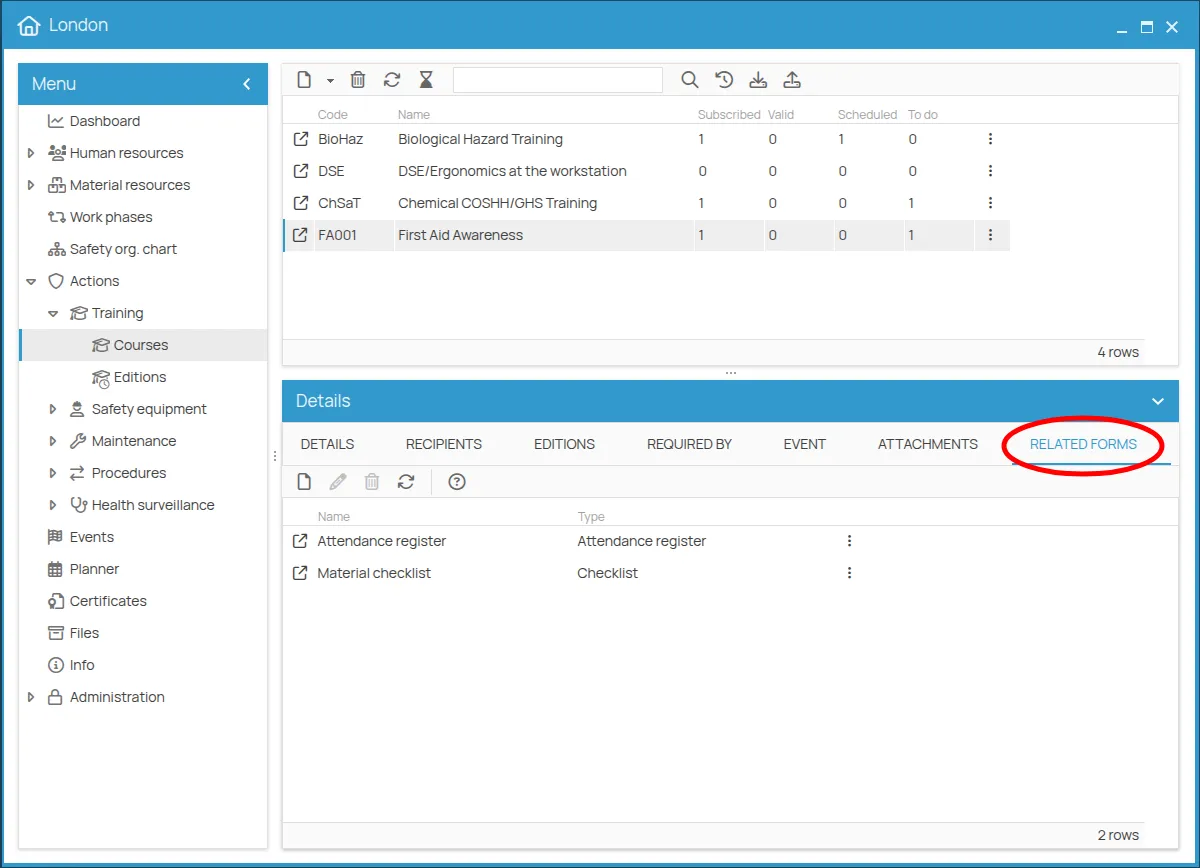
From now on the form is available every time the action is executed — during an inspection, a maintenance job, a delivery — and is prompted automatically. You never have to look for it.
This site is protected by reCAPTCHA and the Google Privacy Policy and Terms of Service apply.