

Getting started with 4HSE
4HSE manages workplace safety for one organisation at a time, through a project. A project can contain several offices — a logistics hub, a production unit, a construction site — and the office is where safety is managed.
After logging in you land on one of two screens. Both are always available, and you move between them with the Start button at the bottom left.
The Home
Section titled “The Home”The Home is a full-screen window: a sidebar on the left, its content on the right.
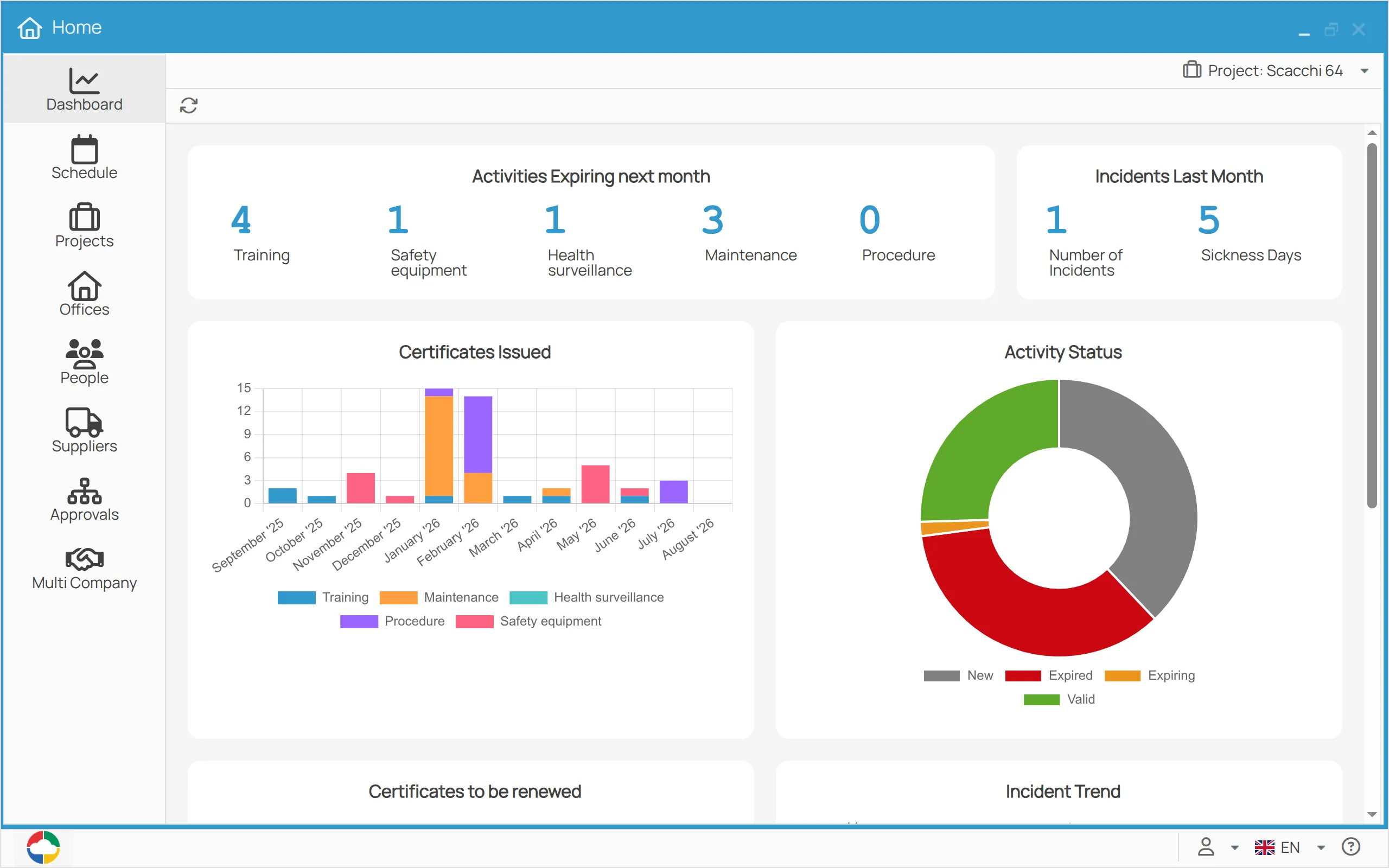
| Section | Always present | What it shows |
|---|---|---|
| Dashboard | yes | the dashboards of the entities you manage, switchable from the toolbar |
| Schedule | yes | the deadlines — see Scheduler and notifications |
| Projects · Offices · People · Suppliers · Approvals | depends | the entities you manage |
| Multi company | only if you manage more than one company | the multi-company panel |
The Home can be shown and hidden at any time from the Start button.
The desktop
Section titled “The desktop”The desktop is the other face of 4HSE: a working area with icons, and a taskbar at the bottom.
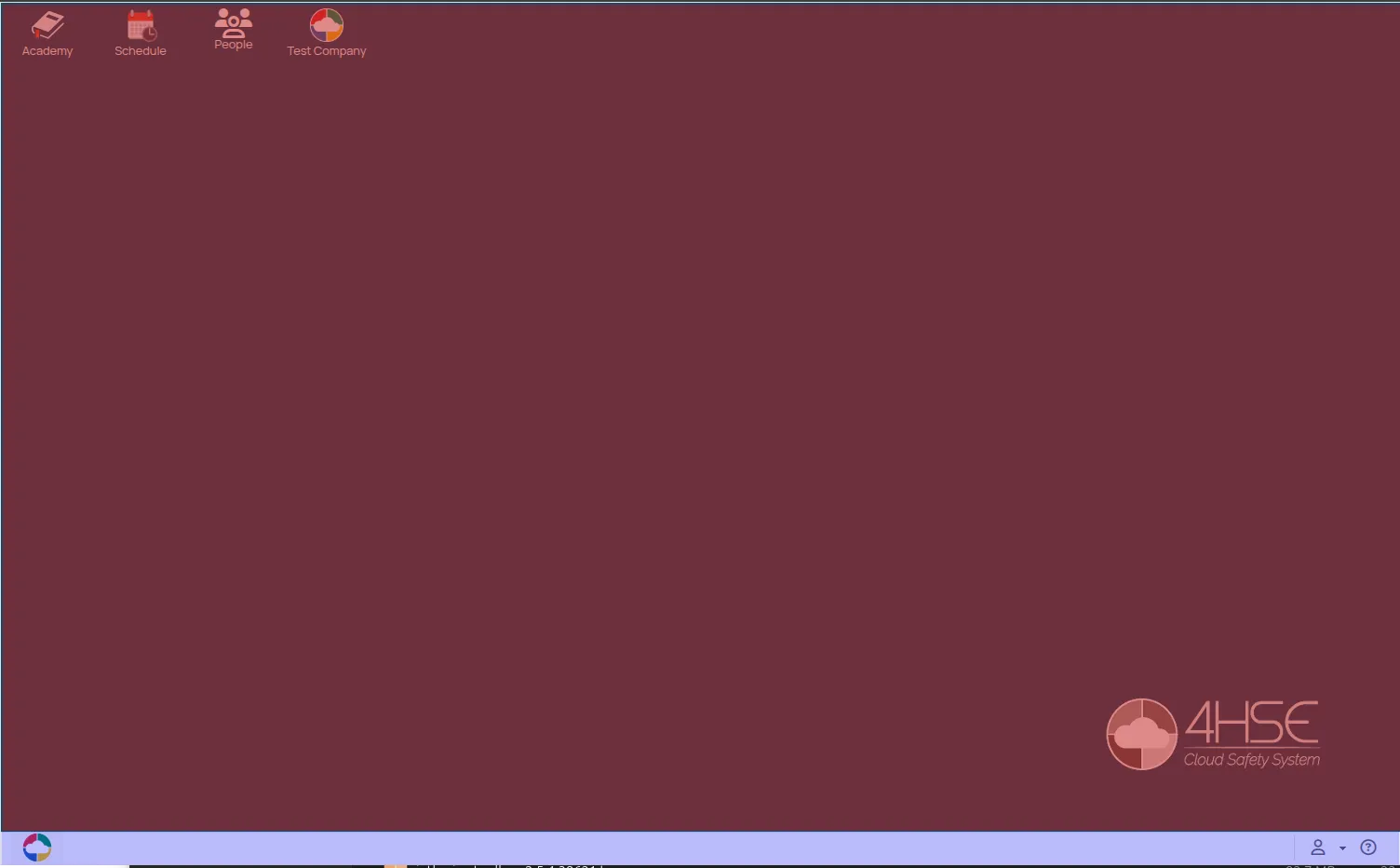
| Icon | What it opens |
|---|---|
| 4HSE Docs | this documentation portal, with the operational guides and the API documentation |
| Calendar | the upcoming and scheduled activities across every project and site you can reach, with filters and export |
| Suppliers | the suppliers you can access — see Suppliers |
| Project icons | one per project: double-click to open it |
The taskbar
Section titled “The taskbar”| Position | What it holds |
|---|---|
| Start, bottom left | shows or hides the Home, whichever start screen you chose |
| User menu, bottom right | your email, which opens the account panel · user preferences · task monitoring · log out |
| Language menu | the language of the interface |
Which one opens at startup
Section titled “Which one opens at startup”It is a personal preference, and you can change it at any time — see Choose the start screen. It changes nothing else: both screens stay reachable.
This site is protected by reCAPTCHA and the Google Privacy Policy and Terms of Service apply.